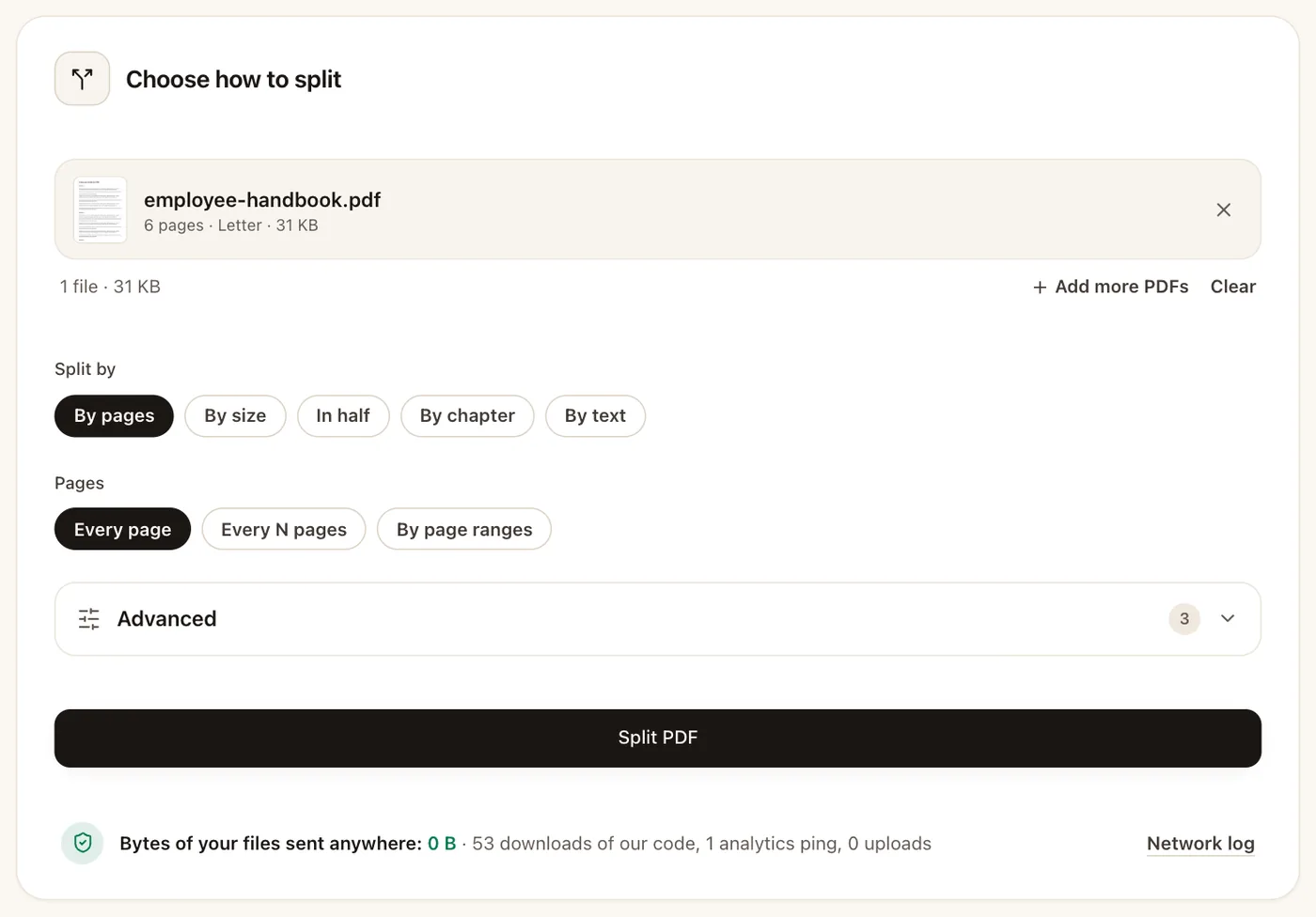
Which way of splitting do you actually need?
People say split, separate, break apart, divide or cut, and a search box treats them all the same. Once the file is open, though, they turn out to be five different jobs:
- Separate every page. Each page is its own document, like a stack of scanned receipts. Choose By pages, then Every page.
- Cut out a section. Pages 1–3 are the letter and 4–12 are the report. Type the ranges, and each range becomes a file.
- Break it into smaller files. This is usually about an email or portal limit. By size fills each part to just under the limit, so you end up with as few parts as possible.
- Split each page in half. This is for phone scans or booklets with two pages on every sheet. In half cuts down the middle and keeps the reading order, right to left too if you need it.
- One file per chapter or per invoice. By chapter names each file after its bookmark. By text starts a new file wherever a phrase appears, which is perfect for a month of invoices saved as one PDF.
How do you separate only some pages from a PDF?
Say you want one new file with just pages 2, 5 and 9. That’s extracting, not splitting. In Extract PDF Pages you tick the pages you want and they’re saved together. Everything else is left out.
Here’s the difference in one line: splitting gives you back every part, while extracting gives you a single file and nothing else. And if you just want to drop a few pages and keep the rest, delete them instead. You get the same document, minus those pages.
Can you split a PDF on Windows, Mac or a phone without installing anything?
Yes. All of this runs in the browser, so the steps are the same in Chrome, Edge, Safari or Firefox, whether you’re on Windows, a Mac, an iPhone, an iPad or Android. The file stays on your device the whole time.
There are built-in options, but they do less. On a Mac, Preview lets you drag a page thumbnail onto the desktop to make a one-page PDF. On Windows, you can print a page range to Microsoft Print to PDF. That one rebuilds the document, though, so links, bookmarks and form fields don’t make it through.
What happens to bookmarks and links in the parts?
Each part keeps the bookmarks that point to its own pages. A link that points to a page now sitting in a different part has nowhere to go, so I leave it as plain text rather than a jump that goes nowhere.
The page numbers printed on the pages stay as they were. Page 40 still says 40 in whichever part it lands in, which is usually what you want for a court bundle or a report extract.
Do the parts add up to the size of the original?
Roughly, and often a bit more. Each part needs its own copy of the fonts and other shared bits, so ten parts of a 1 MB file can add up to 1.4 MB.
That matters when you’re splitting to get under a limit. Don’t assume a 30 MB file turns into three 10 MB parts. Check the sizes, or let By size work it out for you.